Welcome to Our Improved Online Banking Platform

At Bank of Central Florida, we’re excited to introduce FLEX, our newly updated online banking platform designed with you in mind. FLEX combines the functionality you’ve come to rely on with a sleek, new interface that enhances your banking experience. Whether you’re managing personal finances or overseeing business transactions, FLEX makes online banking straightforward and efficient.

Download our comprehensive User Guide to get detailed information on all features and how to use them.

Password and Username Changes and Resets

Updating your password regularly is crucial for maintaining the security of your online banking experience. Here’s how to update your password on FLEX:
  1. Forgot My Password – Reset
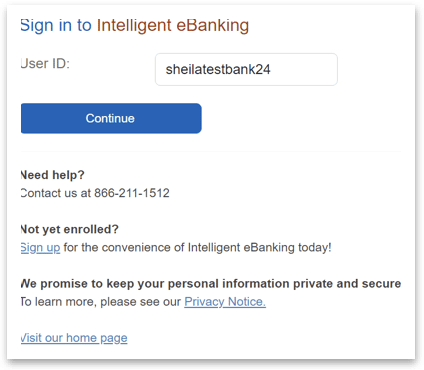
  • You must know your username in order to self-reset. Enter your username and click Continue: 
 
  • On the next screen, click “Forgot your password?
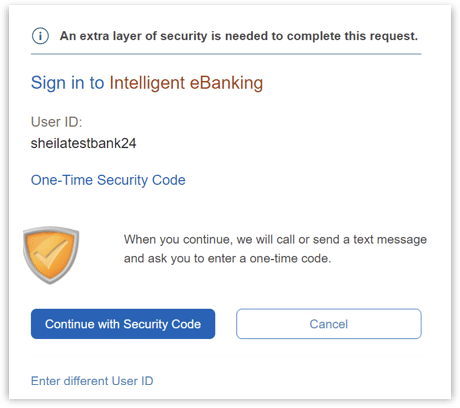
  • Click Continue with Security Code. You will then receive a call or text message with a one time security code.
  • Once you are validated properly, you are prompted to create a new password. (*Note: you cannot repeat the last 10 passwords.)
  1. Change My Password
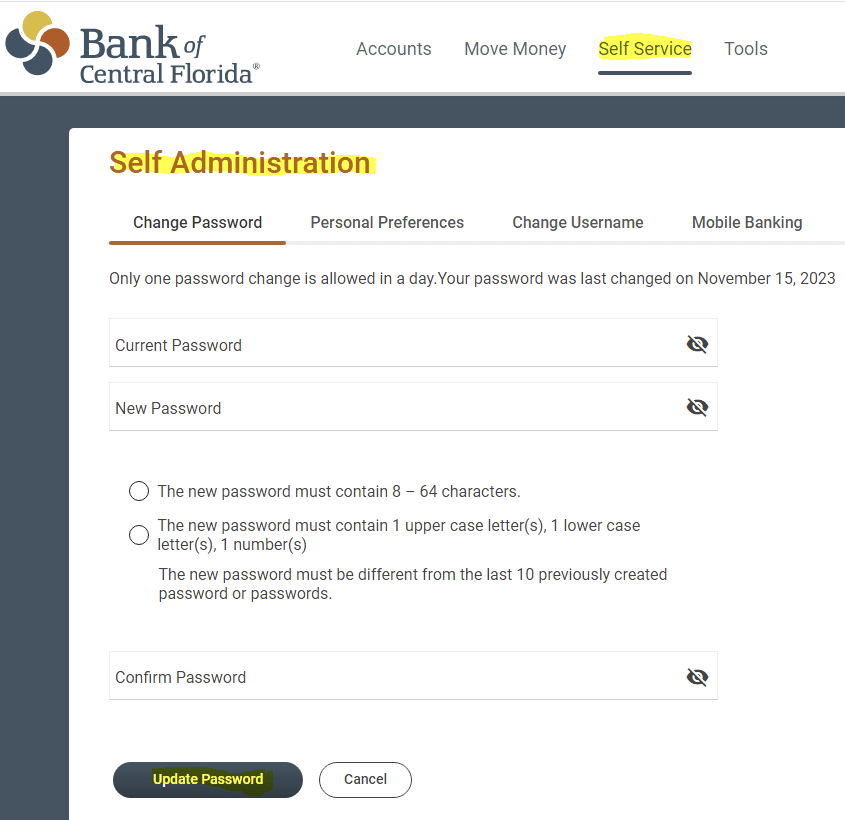
  • You have the option to change your password any time you choose. Click the Self Service> Self Administration> Change Password menu option. Enter your current password, new password, confirm password, and then click Update Password.  
Setting Account Alerts and Service Alerts

To receive notifications of your account activity in real time, you can customize your alerts and elect to receive via email or text message. Here’s how to set them up:
  1. Account Alerts
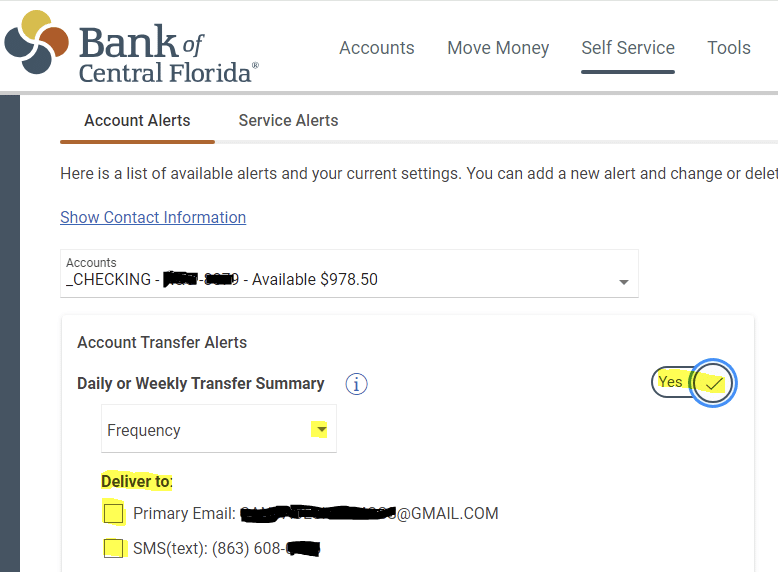
  • Click the Self Service> Alerts> Account Alerts menu optionThese alerts are for account transaction activity. Select the Account you wish to set alerts. Click the edit button for each alert type you wish to set up preferences to make your selections:
 
 
  • Move the toggle button to Yes for each alert you wish to enable, and select parameters for delivery:
 
  1. Service Alerts
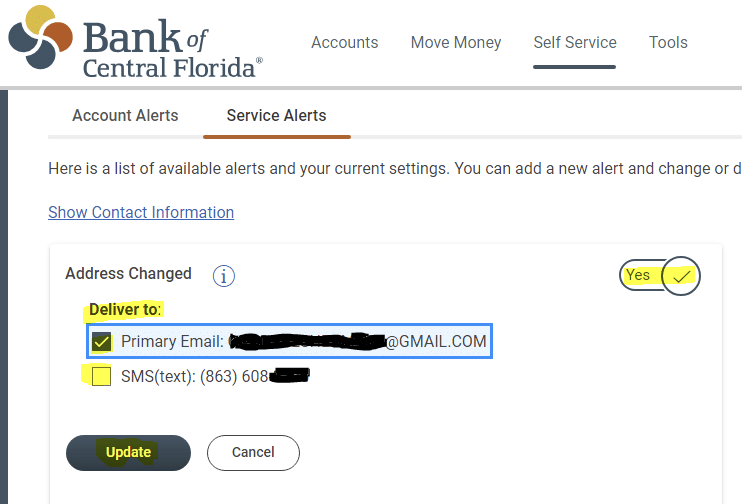
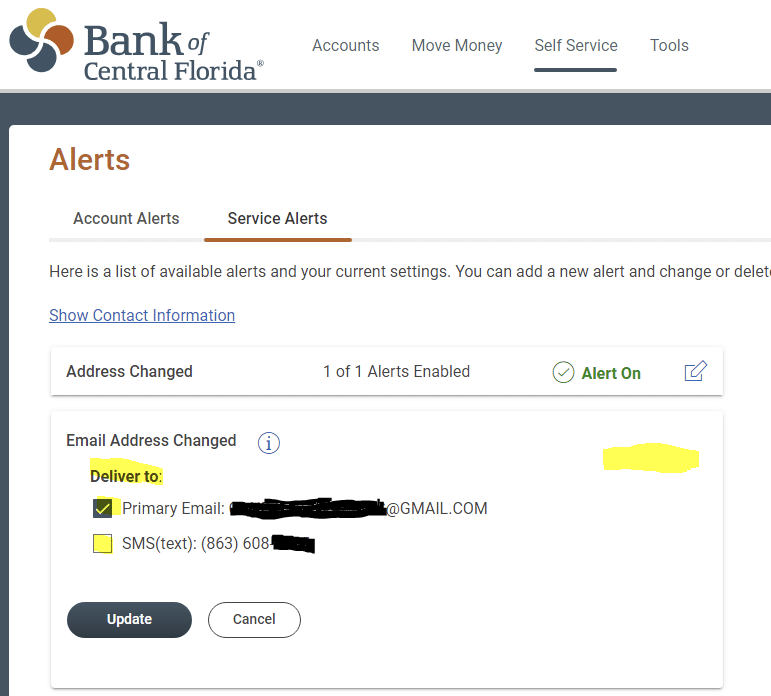
  • Click the Self Service> Alerts> Service Alerts menu optionThese alerts will inform you of profile change activity. Click the edit button for each alert type you wish to set up preferences to make your selections. Then click Update. **Note, that some alerts are mandatory. If you do not see a Yes/No toggle button, this means that the alert is mandatory and cannot be turned off. **
  • Optional Example:
  • Mandatory Example:

FLEX: Simplify Your Online Banking
Experience Today

FLEX is here to simplify your online banking, ensuring you spend less time on banking and more on what matters most. Try it today and see the difference!

Stay Connected with Us:

Follow Us

Did you know you could follow us on LinkedIn, Facebook, Instagram, Youtube or our blog? Stay updated with the latest news and useful banking tips.

Refer a Friend

Love banking with us? Refer us to a friend and help them experience modern, hassle-free banking.

Leave Us a Review

We value your feedback. Leave us a review and let us know how we’re doing. Your input helps us serve you better.

FAQ

Write, swipe or click! Our checking products accommodate the method vou utilize to make purchases through check writing, debit card use and online banking.

Whether you’re expanding your business, financing accounts receivable, purchasing new equipment or building a new office, our experienced commercial banking team will work with you to tailor a loan that fits your short or long-term needs.

Our treasury management tools are designed to assist your company in managing cash flow, risk and operating costs. Please contact Treasury Management for more information about how to put these services to work for your company.

We are committed to helping you keep your identity and information secure.

We have compiled a description of bank security practices and actions you can take to help protect you and your personal information.

Please fill out the form below and one of our specialists will be in touch.

Name(Required)
What services are you interested in?(Required)
This field is for validation purposes and should be left unchanged.